
Avastar exports skeletal animation in two formats:
-
Anim writes Second Life's native
.animformat. It carries animation priority, ease, loop, compression, and supported-bone data. -
BVH writes hierarchy and motion data. It offers BVH-specific reference-frame and bone-lock options, but the file does not contain Avastar per-bone priorities.
Find the exporter
Select an Avastar armature as the active object. The Animation Export panel then appears in Blender's Render Properties. The panel is not shown for an ordinary armature or when another object is active.
Current Avastar also provides two direct entries below File > Export > Avastar:
-
Animation (.anim)
-
Animation (BVH)
Both entry points export the current Avastar action or NLA track. The Render Properties panel also provides bulk export when the Blender file contains more than one action.
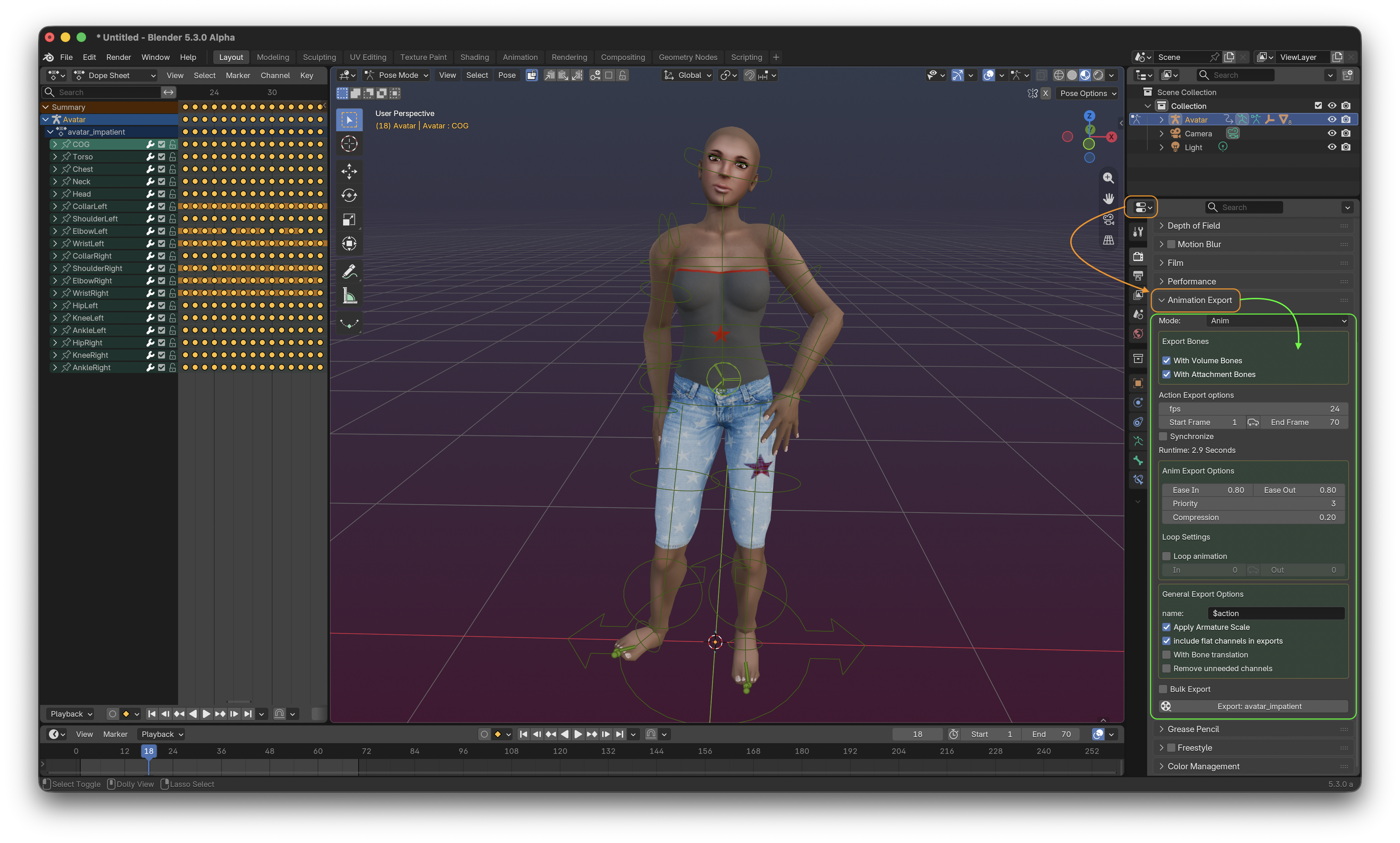
Prepare the animation
Before exporting:
-
Select the Avastar armature.
-
Assign the action you intend to export, or arrange the animation in NLA tracks.
-
Confirm that supported Second Life bones have keyframes.
-
Set the intended frame rate and export range.
- Decide whether the target workflow needs bone translations in addition to rotations.
For an action, Avastar stores the export frame rate, start frame, and end frame with that action. Synchronize keeps these values aligned with the Blender timeline; the adjacent automatic control copies the action's keyed range on demand. An NLA export uses the scene timeline instead.
The displayed runtime is calculated from the selected range and frame rate. Confirm the final duration in the target platform during acceptance testing, especially when exact timing matters.
Export a native .anim file
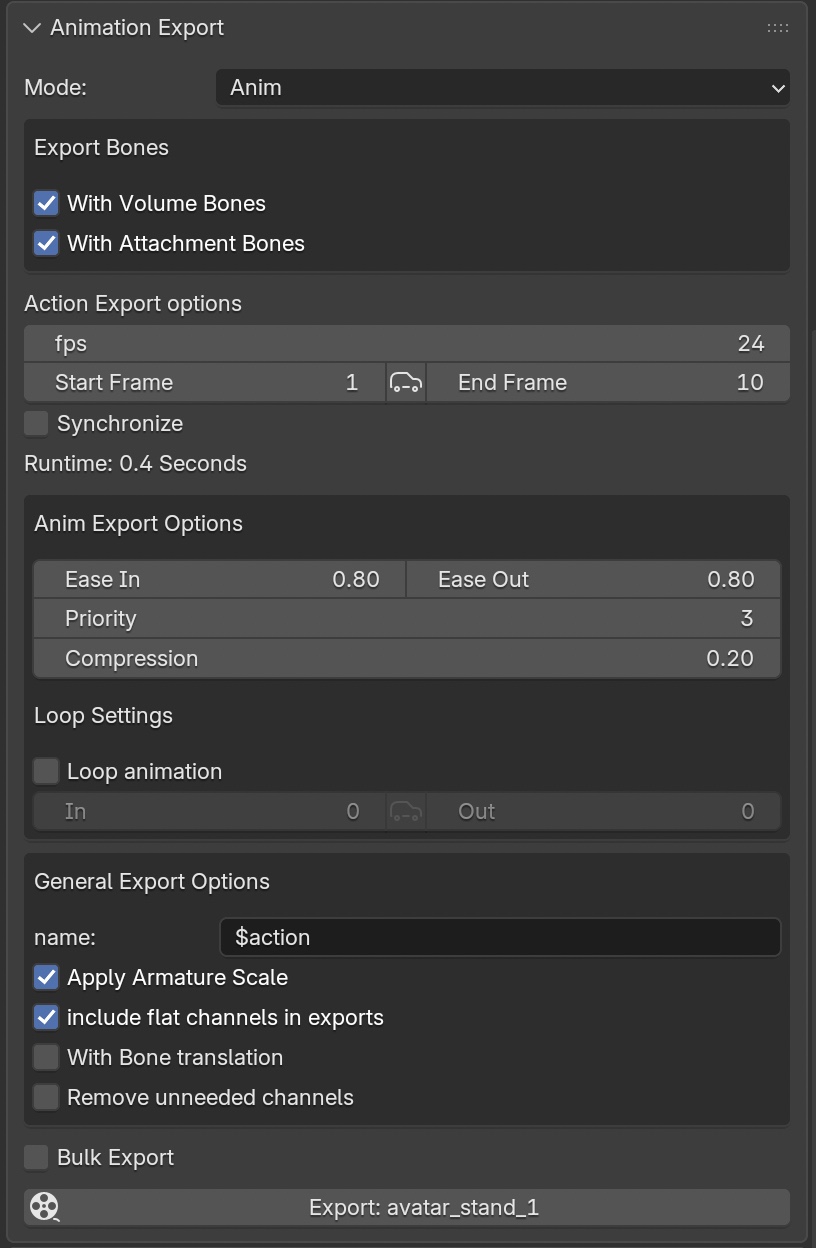
Choose Anim as the mode.
Export bones
The native exporter provides separate controls for Volume Bones and Attachment Bones. Both are enabled by default. Disable a category when those animated bones must not be included in the file.
Playback settings
-
Ease In and Ease Out fade the animation influence in and out. Both are measured in seconds and default to
0.8. -
Priority accepts
-1through6and defaults to3. The file stores this value, but use only values supported by the target platform and workflow. - Compression runs from
0to1and defaults to0.2. Lower values preserve more detail and normally produce larger files; higher values simplify more aggressively.
Loop settings
Enable Loop to repeat the interval between Loop In and Loop Out. Both loop frames must be inside the export range, and Loop Out must not precede Loop In. A single-frame loop is valid. When the values are still uninitialized, use the automatic control to set a valid range.
Protect keyframes from simplification
Add a timeline marker named exactly fix at every frame that compression must preserve. The marker name is lowercase and case-sensitive. This mechanism affects simplification; verify subtle motion by comparing the exported result with the Blender action.
Export a BVH file
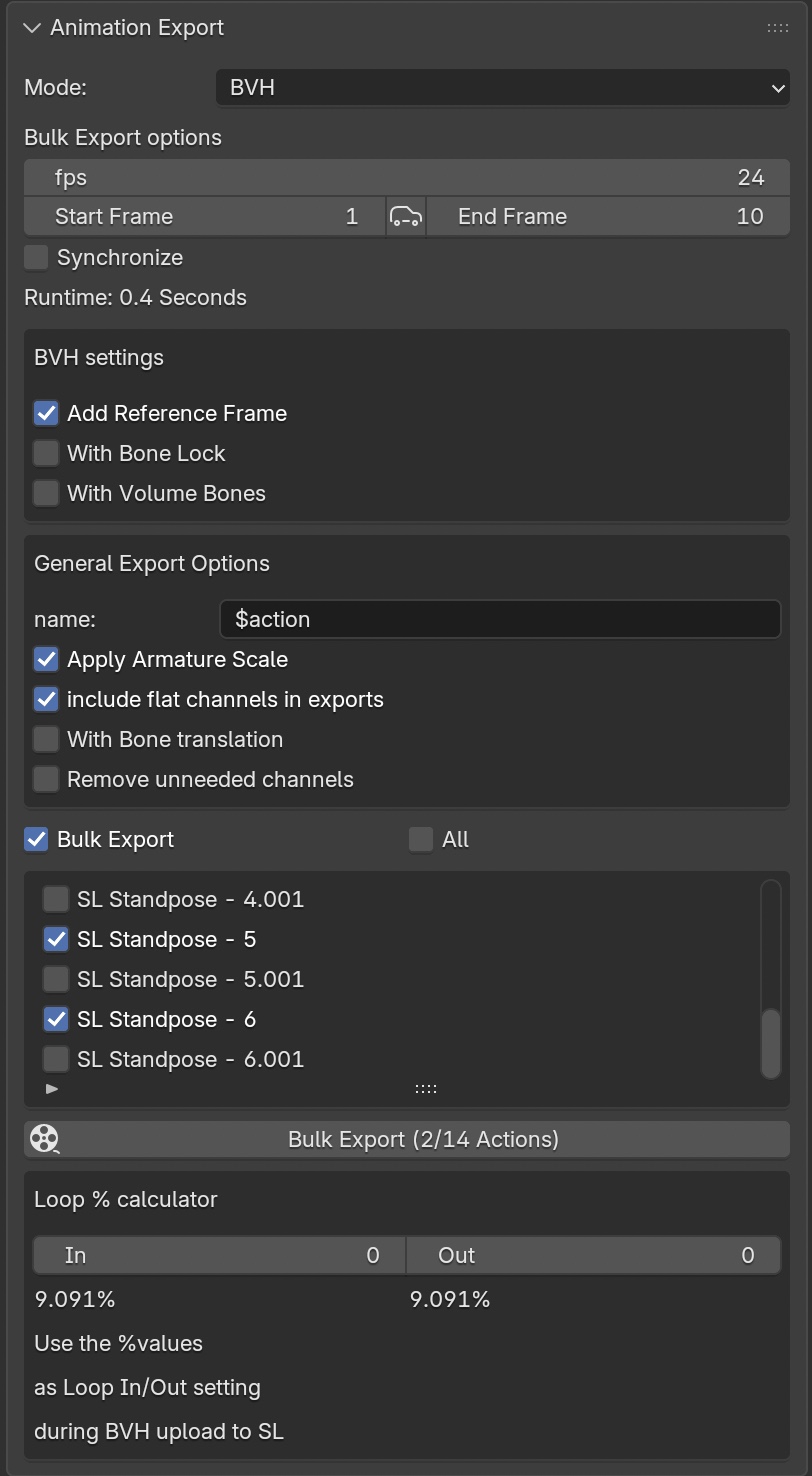
Choose BVH as the mode.
-
Add Reference Frame is enabled by default and prepends a generated BVH reference frame.
-
With Bone Lock is available when a reference frame is added. It keeps keyed bones that otherwise have no motion; this is relevant to static poses.
-
With Volume Bones includes supported classic Second Life volume bones and is disabled by default.
-
The Loop % calculator converts the selected loop frames into percentages to enter during BVH upload.
BVH contains hierarchy, channels, frame timing, and motion values. It does not serialize the base or per-bone animation priorities used by the native .anim exporter. Set any upload priority separately in the destination workflow.
General export options
File-name template
The default name template is $action. These variables are available to build the exported file name:
| Variable | Value |
|---|---|
$action |
Action name |
$avatar |
Armature name |
$fps |
Export frame rate |
$start |
First export frame |
$end |
Last export frame |
$runtime |
Animation runtime |
Native .anim names can additionally use $prio, $easein, $easeout, $loopin, and $loopout.
Scale and channels
-
Apply Armature Scale adjusts the armature scale used for export. Test this option with the actual scaled rig in the destination platform before relying on it.
-
Include flat channels in exports retains channels whose values do not change.
-
With Bone translation exports supported translation channels in addition to rotation.
-
Remove unneeded channels removes translation channels that Avastar determines are not relevant.
Translation can move joints away from their normal positions. Use it deliberately and test the uploaded animation on a disposable avatar before using it in production.
Export one action, NLA animation, or several actions
For a single action or NLA setup, press the export button or use the appropriate File > Export > Avastar entry. Avastar opens a file selector with the substituted name and correct extension.
When the Blender file contains more than one action, enable Bulk Export in the Render Properties panel. Select the actions to include, then choose an output directory. Avastar creates one file per selected action; actions without exportable supported-bone animation are skipped and reported.
Resolve export warnings
-
No keyframes to export: add keyframes to the active action or configure NLA tracks.
-
No exportable bone animation: check the format's Export Bones settings and keyframe supported Second Life bones.
-
Origin is animated: Basic and Advanced UI disable export. Expert and Experimental UI warn but leave the export available. Mute or remove Origin animation unless the workflow has been deliberately tested.
-
Invalid loop range: keep Loop In and Loop Out inside the export range, with Loop In no later than Loop Out, or use the automatic loop-range control.
- Subtle motion disappears: reduce Compression and place exact lowercase
fixmarkers on frames that must survive simplification.