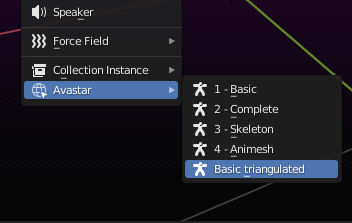
Avastar comes with 4 ready made Presets for adding new characters:
-
Basic:
-
Complete: Extended Mesh (Quads) + Extended Skeleton
-
Skeleton: Extended Skeleton in Default shape(orange), without Mesh
-
Animesh: Extended Skeleton in Neutral Shape (white) with Sliders disabled
Besides these default presets you can add your own entries to the Add menu. You do this in the Add-on Preferences Panel of the Avastar-2 Add-on. Below you find how it is done.
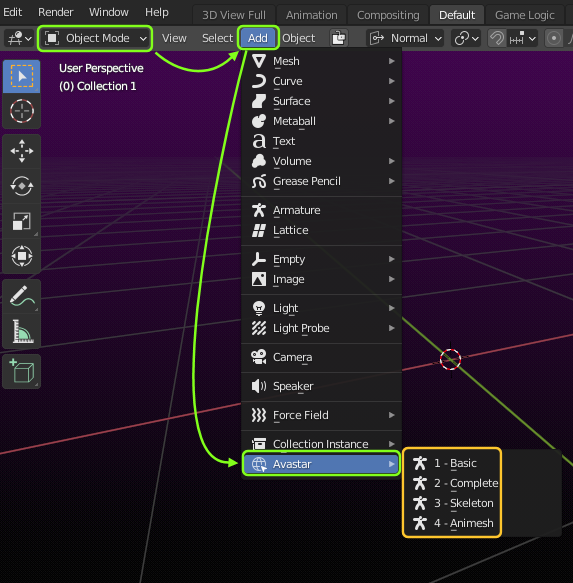
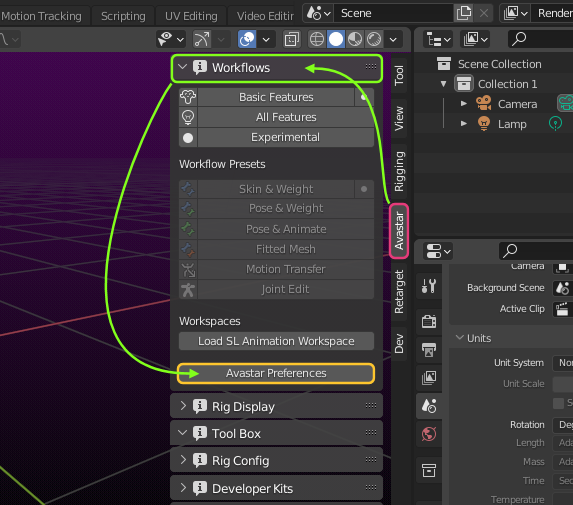
Step 1: Open the Add-on Preferences Panel:
-
Open the N-Panel (press ‘N’ in the 3D Viewport)
-
Open the Avastar Panel
-
Open the Avastar workflows Panel
-
Click the Avastar Preferences Button
This will open a popup window with the User preferences panel of the Avastar-2 Add-on (see below)
Step 2: Create new Presets
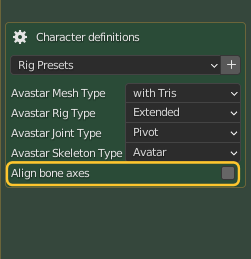
In the Add-on Preferences Panel you find the section Character Definitions (see image below). Here you can define your additional Character Rig Presets:
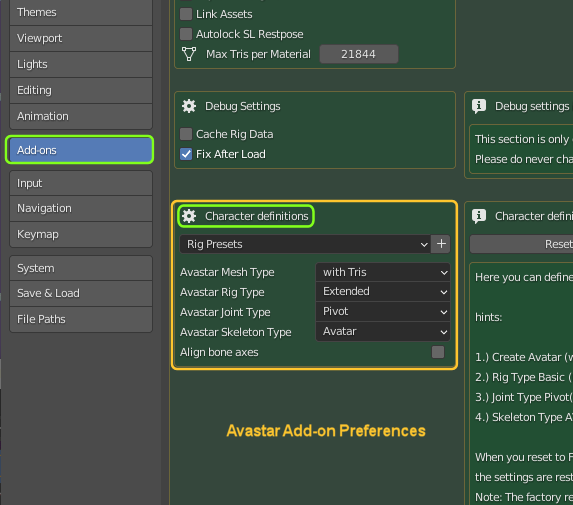
The preset Attributes…
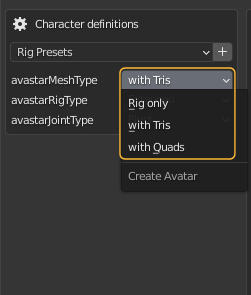
Create Avastar with …
You can create Avastar characters with all meshes using only Triangles. However you also can also choose to create Avastar Meshes with Quads. Using quads is for most cases the better choice. You want to use triangles only when you must rely on the exact meshes from the SL definition.
The Rig Type
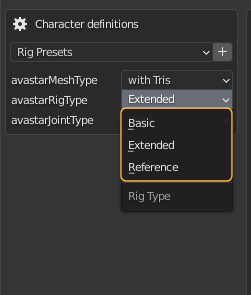
We support 3 Rigtypes
-
Basic (legacy rig – 26 mBones)
-
Extended (Bento rig – 136 mBones)
- Reference (puristic Avatar mesh only with SL bones)
The Joint Type
The SL Rig supports 2 Joint types with very tiny differences. The reason why there exist 2 Joint types can only be explained as historic facts:
-
Pos Joints (Used by the System Character)
-
Pivot Joints (Used for Custom meshes, default)
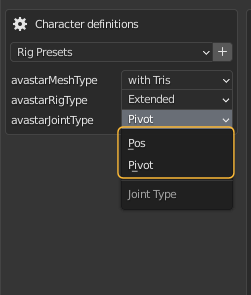
In most cases you want to use Pivot Joints. But sometimes (especially when it comes to foreign developer kits) you may need to use the Pos Joints to keep best compatibility with what you get in world.
Tip: we have not yet found a good reason for when to use the POS Joints (which are slightly less precise) But we found that for example the Belleza Developer kit uses them. When in doubt, then try out which joint type matches best for your purposes.
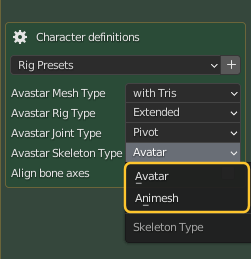
Skeleton Type
Avatar: The default Avastar character with Shape Sliders enabled and using the SL Default Shape (Orange)
Animesh: The default Avastar character with Shape Sliders disabled and using the SL Neutral Shape (White)
Align Bone axes
Create a Rig with all bones having their axes aligned to the Armature space. The bone hierarchy remains compatible with the SL Rig, but the bones are no longer connected because the bone tails no longer line up with the bone heads of their children.
Note: This is an experimental feature for future enhancements. Handle with care!
Step 3: Create the Preset
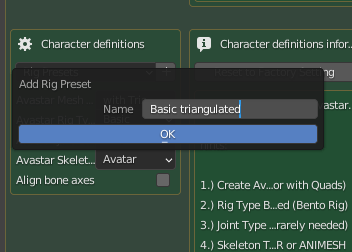
When you have specified your settings, then you are ready to create your new Preset by clicking on the white + sign right sided to the RigPresets Drop Down Menu.
A small popup Window opens where you can give your Preset a name (Basic triangulated in our example). You press OK to store your preset permanently. Please use only ASCII characters and avoid special keys and Umlauts.
From now on you find the new Preset in the Avastar Add menu. Your own presets are preserved until you delete them, even when you restart Blender.
Note: When you delete the Avastar default Presets from your Blender, then this deletion is only valid for the current Blender session. As soon as you restart Blender, the Avastar default Presets are automatically recreated.